![LT logo square.png]](https://portal.lightningtools.com/hs-fs/hubfs/LT%20logo%20square.png?width=40&height=40&name=LT%20logo%20square.png)
Step-by-step migration process
1. Deploy the migration tool to your SharePoint app catalog
Upload the “Social Squared List Migration SPFx” package into your SharePoint app catalog after unzipping it, then enable it for use. You may wish to not deploy it to all sites, and then use the "Add an app" feature on the target (destination) site to add it there temporarily.
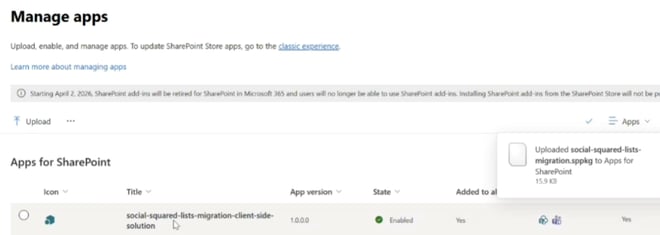
2. Open the target SharePoint site
Go to the destination site where Social Squared content should be copied (this will be the new environment). NOTE: If Social Squared lists already exist on the target site, they will be removed before new ones are created.
3. Edit a page on the target site
Enter page edit mode on any page, to add the temporary migration tool.
4. Add the migration web part
Insert the “Social Squared Lists Migration” web part (not the standard Social Squared web part). This is a temporary component used only for migration.
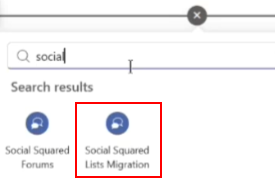
5. Configure the source site URL
Click Configure to set up the migration. In the web part settings, paste the full URL of the source SharePoint site (the site only, not the page URL) containing the existing Social Squared forums.
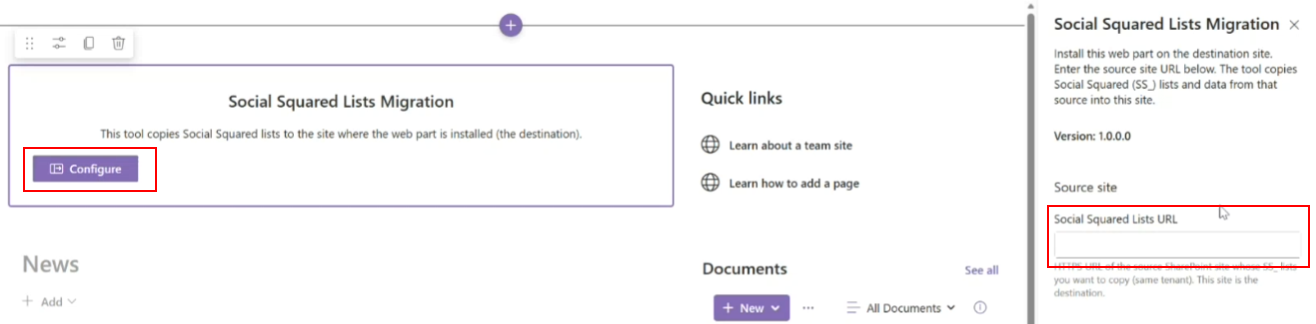
6. Run the migration process
After configuration, use the Process action to start migration.
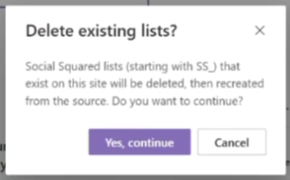
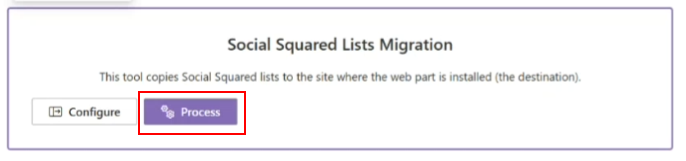 NOTE: If Social Squared lists already exist on the target site, they will be removed before new ones are created. You'll see a warning dialog about this.
7. Wait for list creation and content copy
The system first creates all required Social Squared lists (including hidden ones), then copies forum content such as posts into them. You'll see messages within the migration web part showing the progress. If your existing forum contains a lot of content, this may take some time.
8. Verify completion
Once processing finishes (you'll see a "Migration finished" message), the migrated content becomes available in the target site structure.
9. Add the actual Social Squared web part
Insert the standard Social Squared forum web part on the page to display the migrated content.
10. Remove the migration web part
Delete the temporary migration web part from the page after successful transfer, leaving only the functional Social Squared web part. You can also remove the migration app from the site and the app catalog.